August 29, 2009

Elora, Google Insight and FAME

So as I was playing around with Google Insight, I fell upon a nice piece of "future archaeology" micro event... Google Insight shows the fluctuations in people's search terms on Google's search engine. For instance, entering the term "gift" generates a nice periodic curve with peaks around christmas eve, highlighting the fact people tend naturally to postpone gift quest until the last day (and who doesn't).

The nice thing is you can filter the results regions by regions. As soon as Google Insight appeared in 2004, I've been fascinated about the side effects and correlations retrieved from the simple analysis of those curves. One of the most famous example of this is the propagation of flu activity that can be deduced from symptoms people search before going to the doctor.

But in addition to this amazing data mining aspect of Google Insight, I realize it could also be used to report and keep track of a few micro event (if not very personal ones). My daughter's name is Elora, she was born on the year 2005 at the end of december. Searching for its (not so common) name on Google Insight, I discovered that there wasn't any single activity around the term Elora - for the entire region I lived in - before she was born. And obviously, activity becomes noticeable around her birth date, revealing her (proud) parents searches as well as those initiated by friends and familly.
Elora-Google-Insight
My daughter's birth is now traceable on the internet... which is a real "micro event" compared to the global events usualy revealed by Google Insight!
In a thousand years -- provided google databases survives in some way -- an archaeologist, without any  prior knowledge about this event, could yet deduce that a girl once named Elora was born there on the year 2005 around decembre 25th. That's what one could define as a "Future Archaeology Micro Event" (or just pompously FAME!).

April 29, 2009

Windosill

Currently playing Windosill, a flash-based game bundled inside a small executable.
Trying to give a taste of it...
Ok, it's a point & click (& drag) game where there's nothing to do but try to discover what kind of interaction hides behind each game scene.
No UI, no documentation, no rules; even the title screen is smartly embeded inside the game progression. Every object stands here for a good reason... or maybe not -- after all you are the only human in this place who can figure it out. All around there's only strange resting entities awaiting for you to make them "live" and interact (always in the most unexpected manner).
There's physics everywhere; rigid AND soft bodies so you can very naturally feel contacts, collisions and friction.
But the most impressive part comes from the refreshing aesthetic game design and artistic viewpoint the author injected in the whole process. By no way Windosill looks like anything you've already played before. It's perfectly tilted and shifted in just the right proportion to be defined without any doubt as a brilliant put-a-smile-on-your-face game.
Finally, the only regret comes from it not having been programmed in a faster language than flash, which can definitely not compete with low level compiled languages when it comes to skinned meshes and heavy physics (for now).
Result is a quite slow frame rate [15fps] on a 3 years old laptop... it hurts.
But still there's zero reason not to enjoy this masterpiece now (and buy the full version for only 3$ !).

April 22, 2009

First Test With O3D


Facts:

  • Automatic frame rate adaptation: As long as frame rate is good (greater than 60 fps) more geometry is added and grid gets bigger.

  • Shader-based deformation.

  • Could be greatly optimized if creating a single mesh instead of several transform nodes.

Known Issues:
  • On my laptop (T60p) hardware acceleration doesn't work on chrome (strangely) but it does in IE and Firefox.

January 1, 2000

Keyboard Clicker

Keyboard Clicker is a Win32 system tray program that emulates mouse clicks with the keyboard. It does this by hooking keyboard events and redirecting some user defined keys strokes into mouse clicks.


Requirements

Windows Vista, XP (never been tested on other Windows versions).


Install

Download KeyboardClicker.zip and unzip it where you want.
Keyboard Clicker doesn't require any installation, simply launch the executable.


Uninstall

Launch UninstallKeyboardClicker.reg to make sure nothing relative to Keyboard Clicker is left in the registry.
Note: the Keyboard Clicker registry key is created only if you modify the default settings. So you may not even need to ever launch UninstallKeyboardClicker.reg.


Launch

When launched, KeyboardClicker displays an icon in the taskbar's system tray.
This icon describes the current state of KeyboardClicker; by default it shows the Standard Mode (see bellow).


Standard Usage


This is the default mode when KeyboardClicker starts.
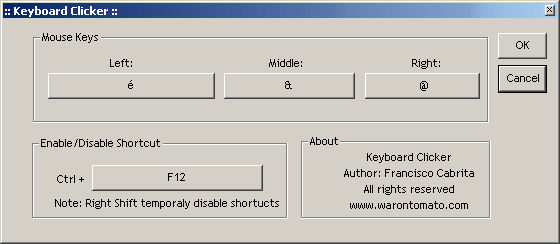
3 keys on the keyboard are used to emulates the Left, Middle and Right mouse clicks; by default those are the first 3 key locate on the far top-left of the keyboard in the row beneath F1-F12 keys.
For instance, on my Azerty MacBook keyboard those are the @, & and é keys.

Most people are right-handed so those default keys have been choosen so that you can still manipulate the mouse with your right hand and use your left hand to perform clicks. To make it more ergonomic, the left hand is far on the left of the keyboard, and to keep it natural the keys are mirrored compared to the orientation of the mouse keys. This way you still use the index finger to perform a left click (but this time with your left hand), the middle finger to perform a middle click, and the ring finger to perform a right click... the only difference is that you do it with your left hand!
It may looks a little bit awkward, but it is in fact a very ergonomic and natural position.


Disable Keyboard Clicker

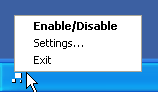
Right-click on the Keyboard Clicker systray icon and choose "Enable/Disable"


A faster way to disable Keyboard Clicker is by pressing Ctrl + F12 (provided you use F12 as the Enable/Disable key).
When disabled, Keyboard Clicker systray icon switches to this icon: .
Pressing Ctrl + F12 again will bring back Keyboard Clicker to its previous active mode.

Note: See the "Tips" paragraph to learn how to access overridden keys.


Settings

Right-click on the Keyboard Clicker systray icon and choose "Settings..."


In the settings dialog mode you can customize the "click" keys. This is essential if you're not right-handed or if you use a different keyboard layout.
You can also customize the "Enable/Disable" key.

Simply click on one of the large buttons and choose your key.

Note: When you modify the settings for the first time, a registry key is created in order to remember your custom changes. If you ever want to come back to the default settings all you have to do is to launch UninstallKeyboardClicker.reg.


Special Modes

In addition to the standard mode, there's two other modes you may find useful.
Press Ctrl + Shit + F12 to cycle through modes (provided you use F12 as the Enable/Disable key).

  • Baby Mode

    In this mode, the List key, the Windows key, the Function key and the start of AltGr key will all be disabled. Very useful when you let a baby use the keyboard to play a game and don't want him to accidentally press the deadly-windows-keys.
  • Mega-Baby Mode

    In this mode, all keys are disabled. Very useful when you want to watch a movie with the laptop on the sofa with the cat trying very hard to disturbe you by pressing some random key :)
Whatever mode you're into, you can always use your get your normal keyboard behavior back by disabling Keyboard Clicker (Ctrl + F12).


Tips

- When the left Shift key is pressed, Keyboard Clicker, while still showing the standard active icon in the systray, will in fact temporarily be disabled. This is a nice and quick way to access the "1" and "2" keys on a typical AZERTY keyboard without having to press Ctrl + Shift + F12.

- I personally like to put a shortcut to KeyboardClicker.exe in my desktop or somewhere in the task bar and associate it a keyboard shortcut (Ctrl + Shift + K for me). This way I don't even need to use the mouse to launch Keyboard Clicker.