Keyboard Clicker is a Win32 system tray program that emulates mouse clicks with the keyboard. It does this by hooking keyboard events and redirecting some user defined keys strokes into mouse clicks.
Requirements
Windows Vista, XP (never been tested on other Windows versions).
Install
Download KeyboardClicker.zip and unzip it where you want.
Keyboard Clicker doesn't require any installation, simply launch the executable.
Keyboard Clicker doesn't require any installation, simply launch the executable.
Uninstall
Launch UninstallKeyboardClicker.reg to make sure nothing relative to Keyboard Clicker is left in the registry.
Note: the Keyboard Clicker registry key is created only if you modify the default settings. So you may not even need to ever launch UninstallKeyboardClicker.reg.
Note: the Keyboard Clicker registry key is created only if you modify the default settings. So you may not even need to ever launch UninstallKeyboardClicker.reg.
Launch
When launched, KeyboardClicker displays an icon in the taskbar's system tray.
This icon describes the current state of KeyboardClicker; by default it shows the Standard Mode (see bellow).
Standard Usage

This is the default mode when KeyboardClicker starts.
3 keys on the keyboard are used to emulates the Left, Middle and Right mouse clicks; by default those are the first 3 key locate on the far top-left of the keyboard in the row beneath F1-F12 keys.
For instance, on my Azerty MacBook keyboard those are the @, & and é keys.
Most people are right-handed so those default keys have been choosen so that you can still manipulate the mouse with your right hand and use your left hand to perform clicks. To make it more ergonomic, the left hand is far on the left of the keyboard, and to keep it natural the keys are mirrored compared to the orientation of the mouse keys. This way you still use the index finger to perform a left click (but this time with your left hand), the middle finger to perform a middle click, and the ring finger to perform a right click... the only difference is that you do it with your left hand!
It may looks a little bit awkward, but it is in fact a very ergonomic and natural position.

A faster way to disable Keyboard Clicker is by pressing Ctrl + F12 (provided you use F12 as the Enable/Disable key).
When disabled, Keyboard Clicker systray icon switches to this icon: .
.
Pressing Ctrl + F12 again will bring back Keyboard Clicker to its previous active mode.
Note: See the "Tips" paragraph to learn how to access overridden keys.
3 keys on the keyboard are used to emulates the Left, Middle and Right mouse clicks; by default those are the first 3 key locate on the far top-left of the keyboard in the row beneath F1-F12 keys.
For instance, on my Azerty MacBook keyboard those are the @, & and é keys.
Most people are right-handed so those default keys have been choosen so that you can still manipulate the mouse with your right hand and use your left hand to perform clicks. To make it more ergonomic, the left hand is far on the left of the keyboard, and to keep it natural the keys are mirrored compared to the orientation of the mouse keys. This way you still use the index finger to perform a left click (but this time with your left hand), the middle finger to perform a middle click, and the ring finger to perform a right click... the only difference is that you do it with your left hand!
It may looks a little bit awkward, but it is in fact a very ergonomic and natural position.
Disable Keyboard Clicker
Right-click on the Keyboard Clicker systray icon and choose "Enable/Disable"
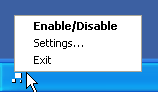
A faster way to disable Keyboard Clicker is by pressing Ctrl + F12 (provided you use F12 as the Enable/Disable key).
When disabled, Keyboard Clicker systray icon switches to this icon:
 .
.Pressing Ctrl + F12 again will bring back Keyboard Clicker to its previous active mode.
Note: See the "Tips" paragraph to learn how to access overridden keys.
Settings
Right-click on the Keyboard Clicker systray icon and choose "Settings..."
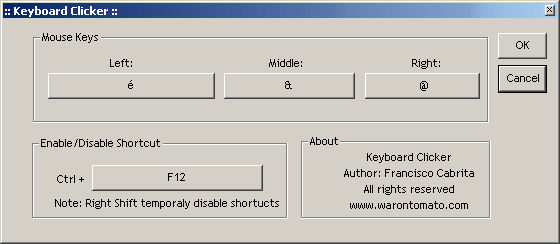
In the settings dialog mode you can customize the "click" keys. This is essential if you're not right-handed or if you use a different keyboard layout.
You can also customize the "Enable/Disable" key.
Simply click on one of the large buttons and choose your key.
You can also customize the "Enable/Disable" key.
Simply click on one of the large buttons and choose your key.
Note: When you modify the settings for the first time, a registry key is created in order to remember your custom changes. If you ever want to come back to the default settings all you have to do is to launch UninstallKeyboardClicker.reg.
Special Modes
In addition to the standard mode, there's two other modes you may find useful.
Press Ctrl + Shit + F12 to cycle through modes (provided you use F12 as the Enable/Disable key).
Press Ctrl + Shit + F12 to cycle through modes (provided you use F12 as the Enable/Disable key).
- Baby Mode
In this mode, the List key, the Windows key, the Function key and the start of AltGr key will all be disabled. Very useful when you let a baby use the keyboard to play a game and don't want him to accidentally press the deadly-windows-keys.
- Mega-Baby Mode
In this mode, all keys are disabled. Very useful when you want to watch a movie with the laptop on the sofa with the cat trying very hard to disturbe you by pressing some random key :)


Whatever mode you're into, you can always use your get your normal keyboard behavior back by disabling Keyboard Clicker (Ctrl + F12).
Tips
- When the left Shift key is pressed, Keyboard Clicker, while still showing the standard active icon in the systray, will in fact temporarily be disabled. This is a nice and quick way to access the "1" and "2" keys on a typical AZERTY keyboard without having to press Ctrl + Shift + F12.
- I personally like to put a shortcut to KeyboardClicker.exe in my desktop or somewhere in the task bar and associate it a keyboard shortcut (Ctrl + Shift + K for me). This way I don't even need to use the mouse to launch Keyboard Clicker.
- I personally like to put a shortcut to KeyboardClicker.exe in my desktop or somewhere in the task bar and associate it a keyboard shortcut (Ctrl + Shift + K for me). This way I don't even need to use the mouse to launch Keyboard Clicker.
